
The Interventionists tab gives you a searchable list of all interventionists in your district, along with a summary of their caseload status.
Accessing the Interventionists Tab
Select Interventionists from the navigation tabs at the top of the Admin Center.
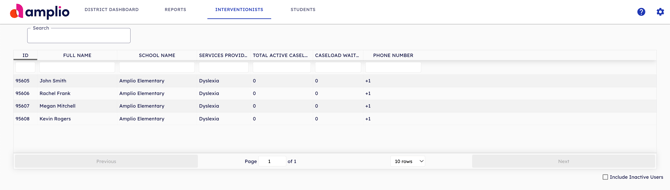
What You'll See
The table includes the following columns for each interventionist:
- ID — The interventionist's system ID
- Full Name — The interventionist's name
- School Name — The school(s) they are associated with
- Services Providing — The type of service they deliver (for Reading Intervention customers, this will show Dyslexia)
- Total Active Caseload — The number of students on this interventionist's caseload who have logged in to Amplio at least once
- Caseload Waiting — The number of students who have been onboarded and rostered but have never logged in
- Phone Number — The interventionist's contact number
Using the Search Bar
Use the Search bar at the top of the tab to find a specific interventionist by name.
Understanding Caseload Waiting
The Caseload Waiting column is a useful indicator of students who have been set up in the system but have not yet started using the platform. A high number of waiting students may indicate that students need help with their login, or that an interventionist has not yet introduced the platform to their caseload.
If you need support following up on these students, contact your Amplio Customer Success representative.