
This article walks you through how to log in to the Amplio Admin Center for Reading Intervention, including setting up your password the first time and what to do if you ever need to reset it.
Before You Log In: Setting Up Your Password
When your administrator account is created, you will receive a Welcome to Amplio email from support@ampliospeech.com. This email contains a Create New Password button — you must complete this step before you can log in for the first time.
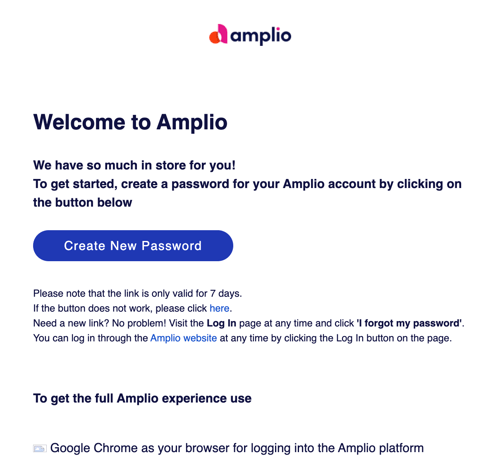
⚠️ The link in the welcome email is only valid for 7 days. If your link has expired, go to school.ampliospeech.com and select Forgot password? to receive a new one.
Creating Your Password
- Select Create New Password in the welcome email
- On the Set a New Password screen, your username (a numeric ID - ⚠️ Be sure to write this down and remember it) will be pre-filled
- Enter your new password in the New Password field, then re-enter it in the Re-type New Password field
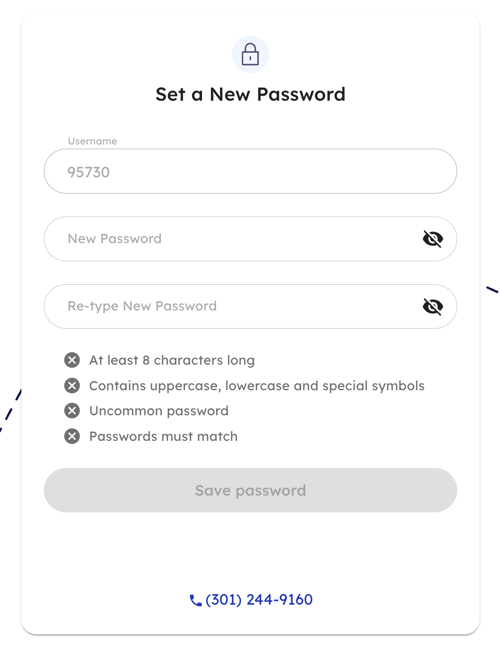
Your password must meet all four requirements:
- At least 8 characters long
- Contains uppercase, lowercase, and special symbols
- Is not a commonly used password
- Both entries must match
All four requirements will show a green checkmark when met.

- Select Save password
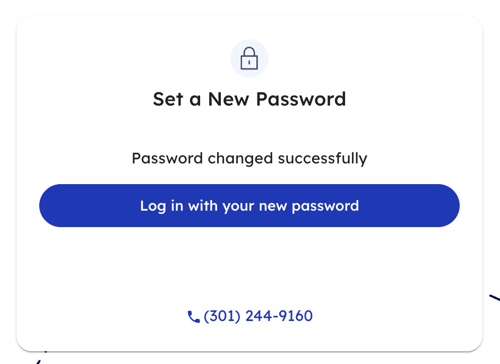
- When you see the confirmation screen, select Log in with your new password
Logging In
Go to school.ampliospeech.com to access the Admin Center at any time.
Step 1: Enter Your Username
Enter your username — this is a numeric ID that was automatically generated when your account was created — and select Next. If you are not sure what your username is, email us at support@ampliolearning.com and we can resend it to you.
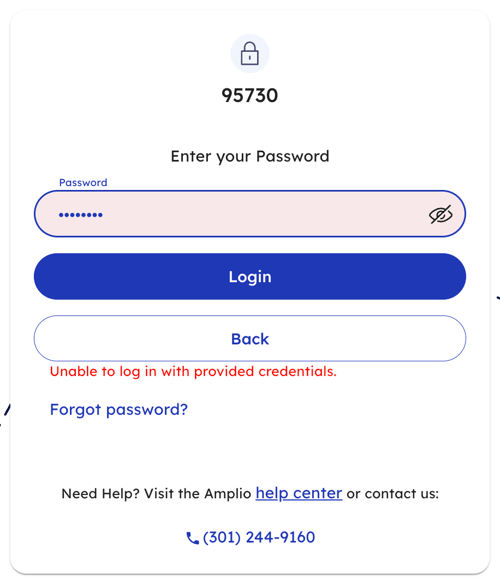
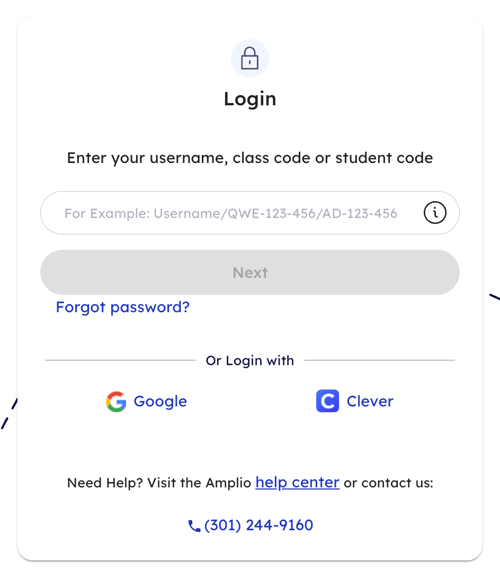 If you see an "Unable to log in with provided credentials" message, double-check that you are entering your username (not your email address) and try again.
If your school email is Google-based, you can select Google to log in instead — this bypasses the Amplio username entirely and uses your Google account directly. To set up Google SSO for your administrator account, contact us at support@ampliolearning.com.
Step 2: Enter Your Password
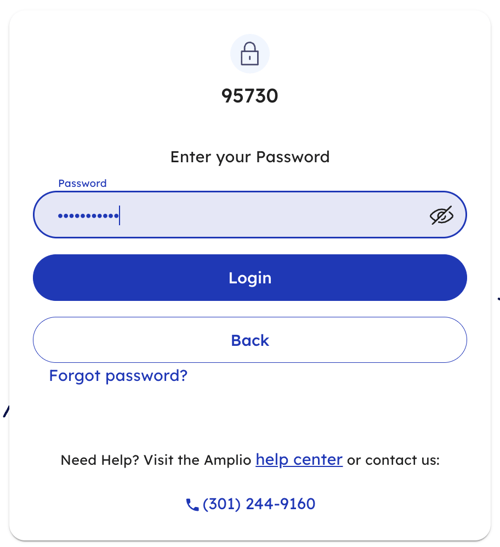
Enter your password and select Login. Select Back to return to the username screen, or Forgot password? if you need to reset your password.
Step 3: Complete Two-Factor Authentication
A 6-digit verification code will be sent to your mobile device and/or email address. Enter the code in the Submit Code field and select Submit.
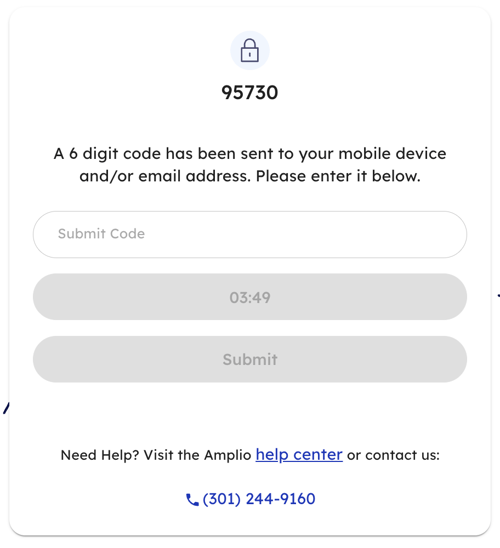
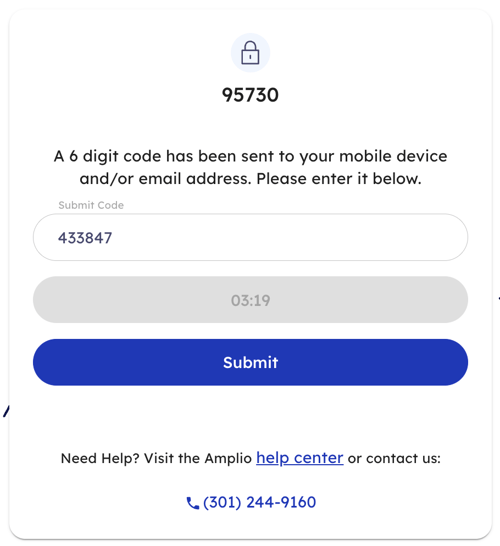
The code expires after a short window — if the timer runs out before you submit, you will need to request a new code. If you need help, visit the Amplio Help Center or call (301) 244-9160.
Step 4: Accept Terms & Conditions (First Login Only)
The first time you log in, you will be asked to review and accept Amplio's Terms & Conditions and Privacy Policy.
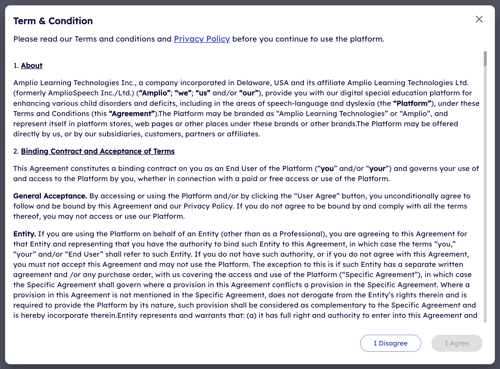
Scroll to the bottom of the Terms & Conditions, check the box confirming you have read and agree, then select I Agree to continue.
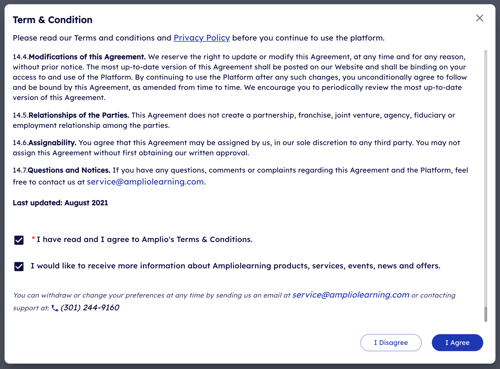
You will not be asked to accept the Terms & Conditions again on subsequent logins.
Step 5: You're In
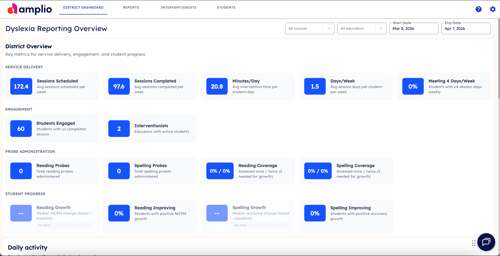
After completing the steps above, you will land on the District Dashboard — your home base in the Admin Center.
Resetting Your Password
If you have forgotten your password or need to set a new one, select Forgot password? from the login screen.
Amplio will send a reset link to your registered phone and/or email address. Open the link and follow the same steps as the initial password setup — enter a new password that meets all four requirements, then select Save password.
If the reset link has expired before you use it, return to the login page and select Forgot password? again to receive a fresh link.
If you continue to have trouble resetting your password, email us at support@ampliolearning.com and we'll get you sorted out.
Need Help?
If you are unable to log in or are not receiving reset notifications:
- Visit the Amplio Help Center
- Call (301) 244-9160
- Or reach out to your Amplio Customer Success representative