Background
Caseload Reports is Amplio’s enhanced reporting feature that enables educators to easily generate, customize, and export session summaries and student progress data. The tool is organized into three tabs:
- Caseload Overview – Monitor student engagement at a glance.
- Session Summaries – Instantly generate session notes for Medicaid and IEP reporting.
- Progress Data – Track student growth over time and create progress reports in minutes, eliminating a major time drain for SLPs.
This article will review how to navigate the Progress Data tab. For more information on the Caseload Overview and Session Summaries within Amplio’s Caseload Reports, visit their Help Center articles.
Progress Data
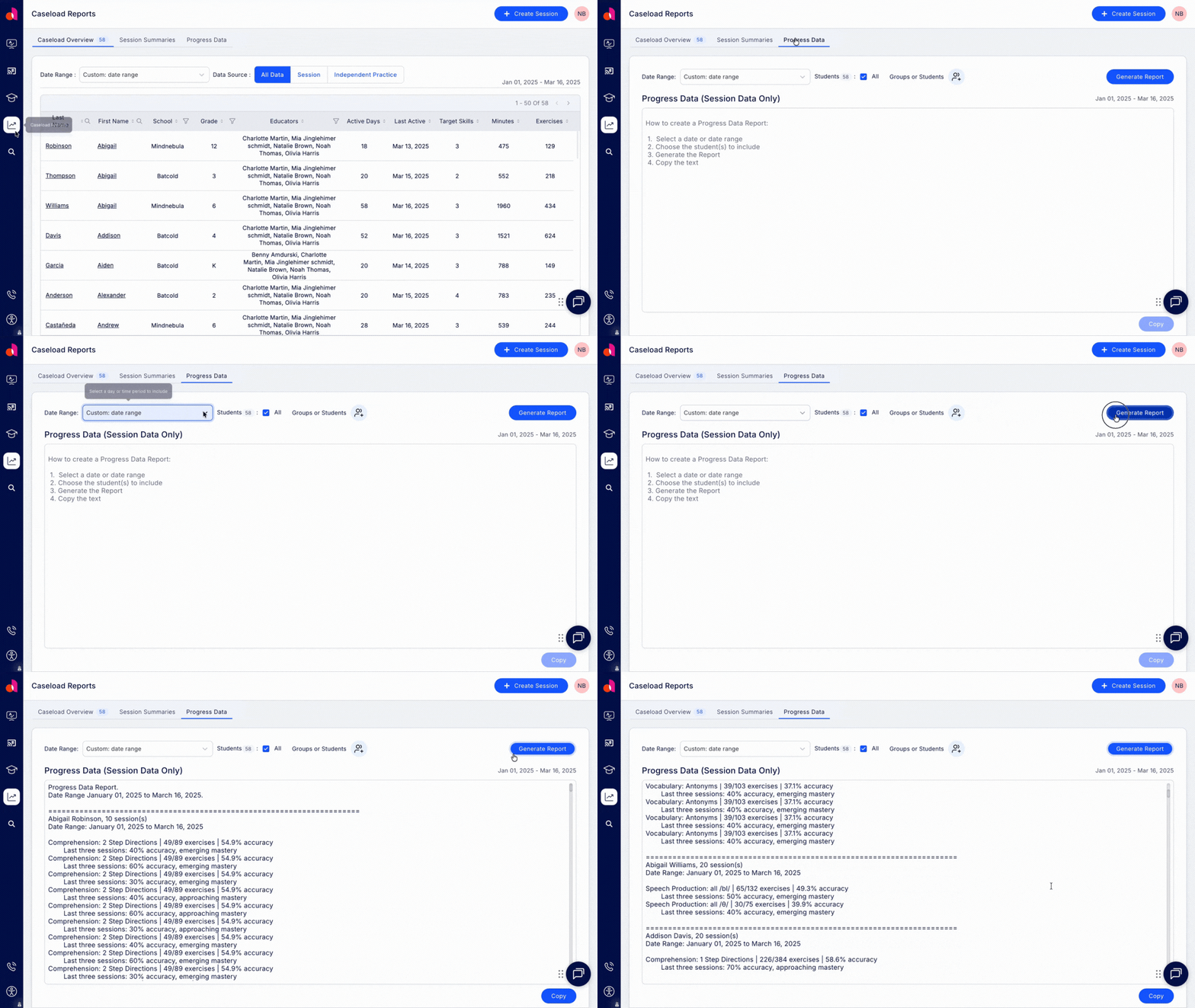
The Progress Data tab of the Caseload Reports page allows educators to track student growth over time and generate reports for documentation and compliance. This interactive walk-through and the information below will review how to navigate the Progress Data tab.
From the Home Page, click the Track Skills button to open the Caseload Reports page. Otherwise, click the Caseload Reports icon on the far left to open to the Caseload Reports page.
Then, click on the Progress Data tab.
Set Your Date Range
Next, set your date range. To see progress data for a specific time period, click the date range dropdown menu to choose from:
- School year to date (starting from August 1)
- Previous school year (August 1 - July 31)
- A custom date range (up to 18 months)
- A single day
Choose Your Students
Next, choose which students to include.
Leave ‘All’ checkmarked to pull progress data for all students assigned to you within the specified date range.
Alternatively, click on the ‘Groups or Students’ button to select individuals or groups of students. Once you’ve made your selection, click Confirm.
Generate Report
Click the Generate Report button to compile the progress data.
The generated report is organized by student, summarizing progress toward target skills. You can review the following information in the generated report:
- Number of sessions the student completed on Amplio during the specified date range
- Target skill area
- Number of exercises correct out of total exercises completed
- Student’s overall accuracy percentage for that target skill
- The average accuracy score over the last 3 sessions for that target skill
- Mastery classification label based on the student’s accuracy over the last 3 practices
Click Copy to grab the full report, or highlight specific sections to copy and paste into a Medicaid billing system, an IEP system, or other documentation tools.