Background
Caseload Reports is Amplio’s enhanced reporting feature that enables educators to easily generate, customize, and export session summaries and student progress data. The tool is organized into three tabs:
- Caseload Overview – Monitor student engagement at a glance.
- Session Summaries – Instantly generate session notes for Medicaid and IEP reporting.
- Progress Data – Track student growth over time and create progress reports in minutes, eliminating a major time drain for SLPs.
This article will review how to navigate the Caseload Overview tab. For more information on the Session Summaries and Progress Data within Amplio’s Caseload Reports, visit their Help Center articles.
How to Use Caseload Overview
The Caseload Overview tab of the Caseload Reports page allows educators to quickly check student engagement and track progress at a glance. This interactive walk-through and the information below will review how to navigate the Caseload Overview tab.
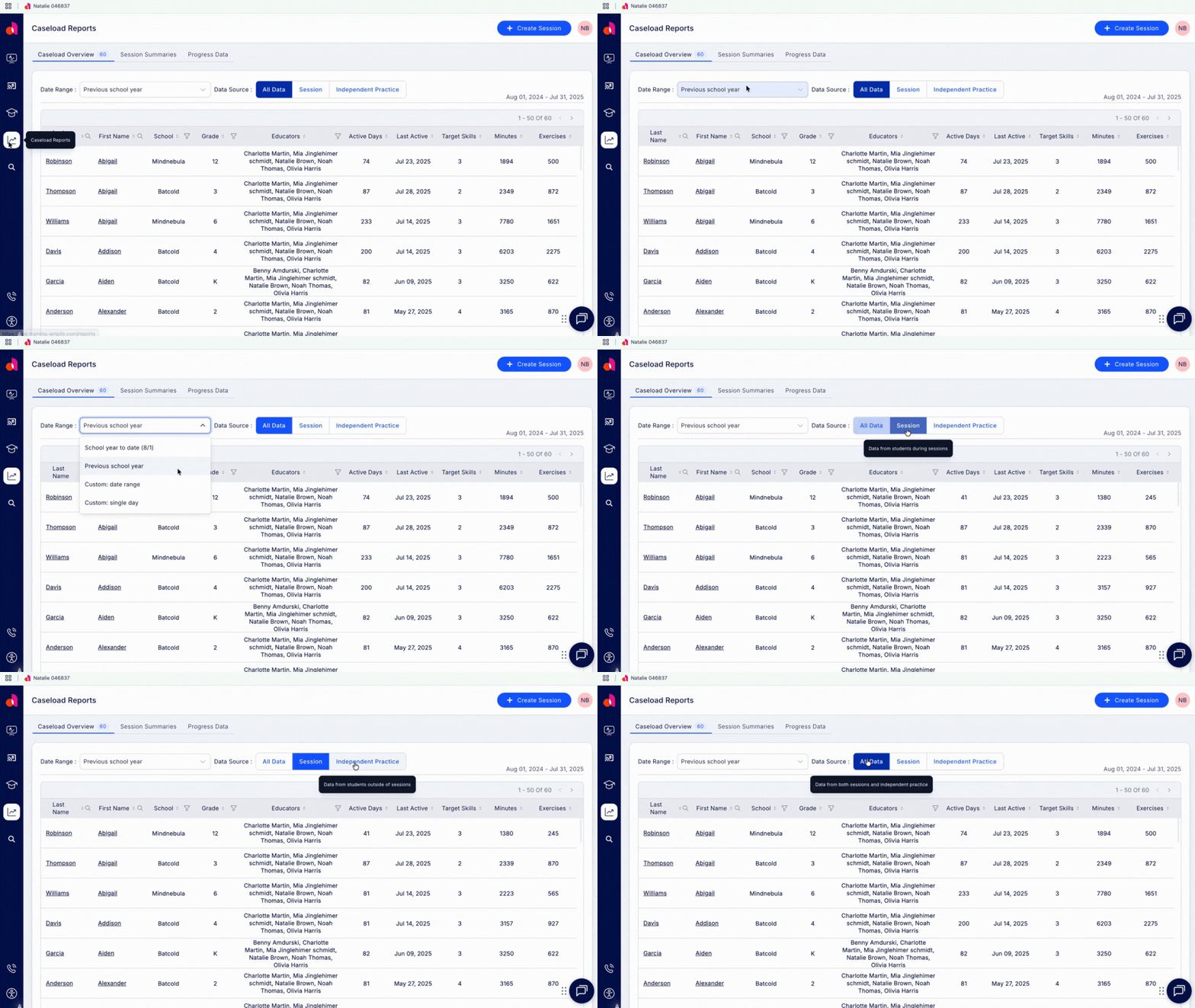
Click the Caseload Reports icon to navigate to the Caseload Reports page. The Caseload Overview tab gives you a high-level view of student engagement and activity across sessions and independent practice.
Caseload Overview Table
The column headers on this table are defined below.
- Last Name: Student’s last name
- First Name: Student’s first name
- School: The school the student is enrolled in
- Grade: Student’s current grade level
- Educators: Lists all Amplio educators the student is assigned to
- Active Days: Number of days the student has been active in Amplio
- Last Active: The date in which the student was last active in Amplio
- Target Skills: Number of target skills being tracked for the student (based on assignment history and assignment queue)
- Minutes: Number of minutes the student has been active in Amplio
- Exercises: Number of exercises within an activity that the student has practiced
Set Your Date Range
To see data for a specific time period, click the date range dropdown to choose from:
- School year to date (starting from August 1)
- Previous school year (August 1 - July 31)
- A custom date range (up to 18 months)
- A single day
Set Your Data Source
The Caseload Overview table automatically displays “All Data”, which is both session and independent practice data. Need to focus on just one? Simply select Session or Independent Practice to view accordingly.
Sorting, Searching and Filtering Your Caseload Overview Table
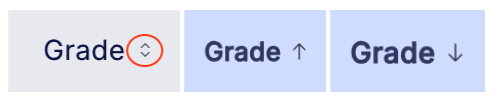
Click these arrows (circled below) in a column header to sort the Caseload Overview table by that column. Choose the up or down arrow option to sort the data in ascending or descending order.
- Click 1x: sort in ascending order
- Click 2x: sort in descending order
- Click 3x: return to default setting
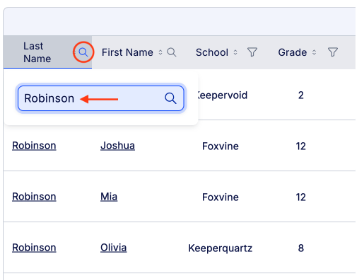
Click the magnifying glass icon in a column header to search within that column. Type your keyword, and the table will instantly filter to show only matching rows.
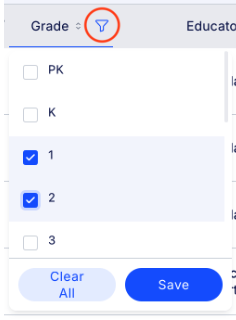
Click the funnel icon in a column header to filter the table by that column. Choose your desired criteria, and the table will update to show only the rows that meet those filters. You can filter by:
- School
- Grade level
- Assigned Educators
Access Individual Student Reports
Click on a student’s name to open their individual report, where you’ll find a breakdown of their usage, engagement trends, and progress toward targeted skills.
Just like on the Caseload Overview page, you can specify a date range and the data source in the same manner on the Student Report page.
Use the widgets on this page to explore student usage patterns and progress.
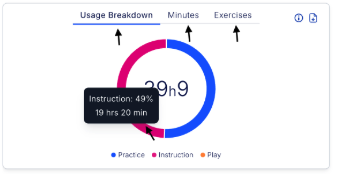
Usage Breakdown:
- Explore how much time the student is spending practicing skills versus in instruction or play
- View the number of minutes the student uses Amplio over time
- View how many exercises the student has completed over time
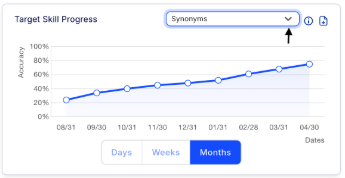
Target Skill Progress:
- View the student’s accuracy scores, plotted on a line graph over time
- Use the drop down menu to select individual target skills
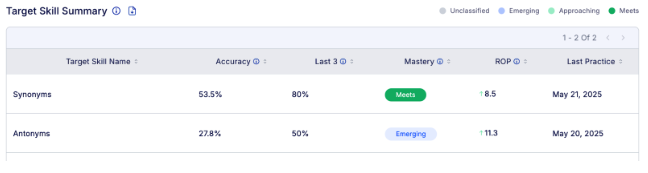
Target Skill Summary:
- View a snapshot of the student’s performance and growth per target skill
- Accuracy: The student’s overall accuracy in the selected time period
- Last 3: The student’s average accuracy score over the last 3 consecutive practices (Note: If fewer than 3 practices have occurred, the table will display ‘--’.)
- Mastery: Classification system based on the average accuracy across the last 3 practices
- Hover over classification labels in the platform to see their definitions
- Unclassified: Fewer than 3 practices have occured
- Emerging: Less than 60% accuracy
- Approaching: 60%-79% accuracy
- Meets: 80% or higher accuracy
Download Usage & Progress Data
To export data from the individual student report, simply click on the download icon within the widget and - voila!

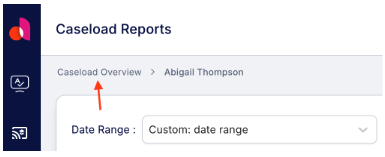
Returning to Caseload Overview
To return to the Caseload Overview page, look towards the top of the screen, above the Date Range drop down menu. Simply click on “Caseload Overview”.