
This article covers:
- How Reading Probes work and when to use them
- How Spelling Probes work and when to use them
- Where to find probe data after a session
Reading Probes
What are Reading Probes?
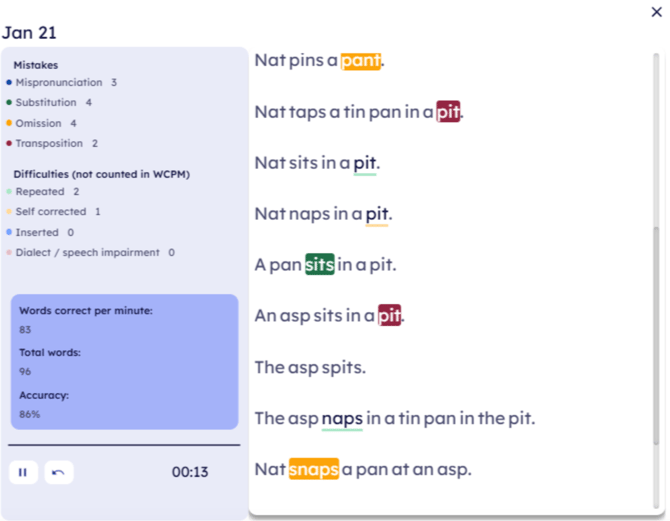
Reading Probes are used to measure reading fluency and accuracy using texts from the MTA curriculum. Reading fluency is an essential component of MTA instruction, and Amplio digitizes this process to make data collection more consistent, accurate, and easy to review over time.
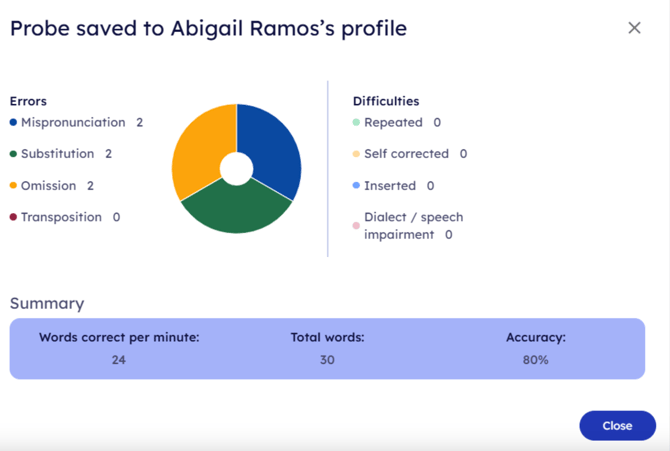
The platform automatically calculates key metrics such as:
- Words Correct Per Minute (WCPM)
- Accuracy
- Error patterns
All results are stored in session notes and the student profile for later review.
Where to Find Reading Probes
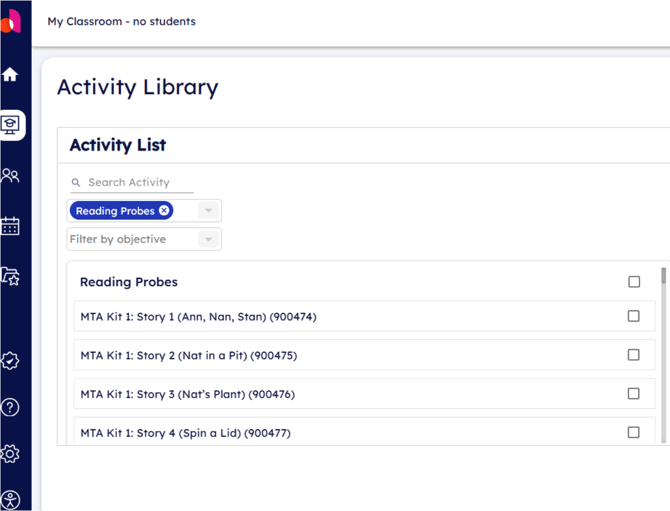
- From the Classroom, open the Activity Library
- Filter activities by Component
- Scroll down and select Reading Probes
Only probes aligned to the student’s current kit/lesson should be used. For a list of the prerequisites that need to be met to administer a probe, check the “MTA Reading Probe Prerequisite List” located on the resource folder under general.
How to Conduct a Reading Probe
- Assign the appropriate reading probe from the Activity Library
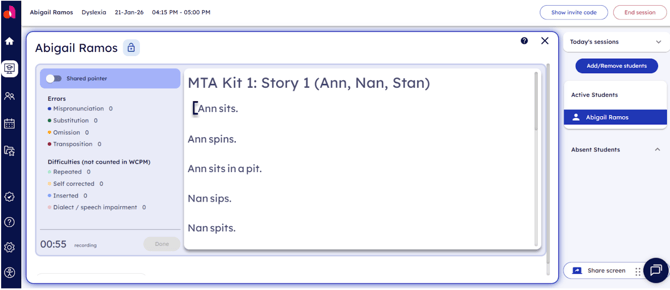
- Present the student with the selected text
- Ask the student to read aloud for one minute
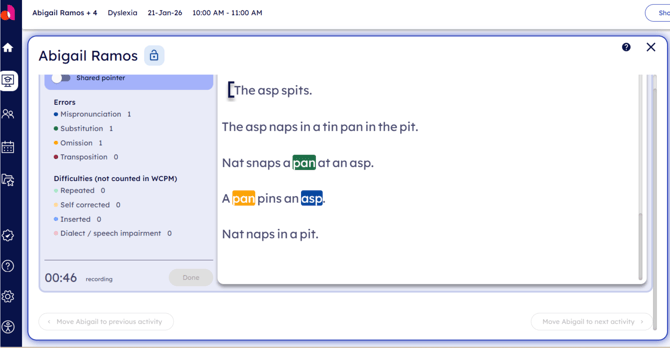
- Use the on-screen stopwatch and mark errors as they occur
The platform automatically calculates fluency and accuracy metrics in the background.
Reviewing Reading Probe Data
After the session, you can:
- Review probe results in the student’s profile
- Listen to the student’s audio recording
- Check and confirm your error markings for accuracy
Reading Probes may be re-administered using a different section of the same text to support biweekly progress monitoring.
Spelling Probes
What are Spelling Probes?
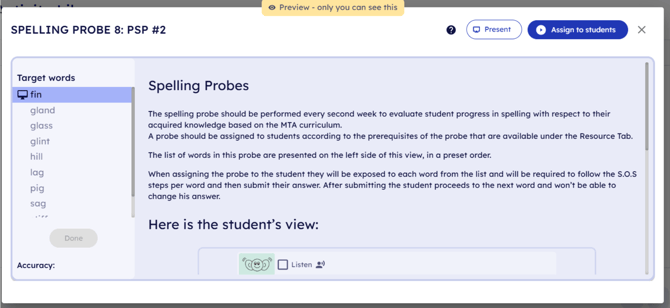
Spelling Probes are a required component of the MTA curriculum and should be administered every two weeks. They evaluate student progress in spelling skills using a structured, repeatable process aligned to MTA instruction.
Amplio digitizes spelling probes to:
- Automatically score student responses
- Identify and categorize spelling errors
- Store results for longitudinal analysis
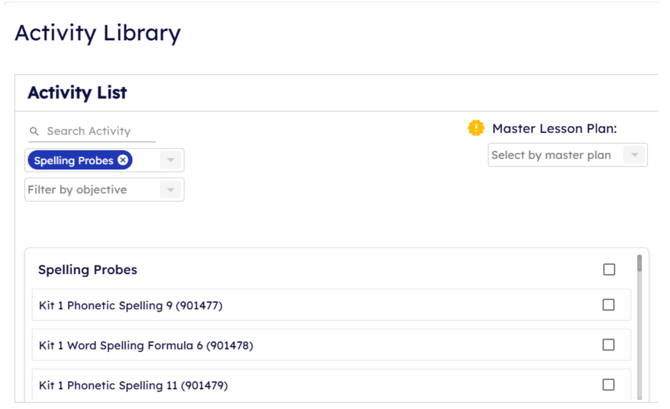
Where to Find Spelling Probes
- From the Classroom, open the Activity Library
- Filter activities by Component
- Scroll down and select MTA Spelling
Only probes aligned to the student’s current kit/lesson should be used. For a list of the prerequisites that need to be met to administer a probe, check the “MTA Spelling Probe Prerequisite List” located on the resource folder under general.
How to Conduct a Spelling Probe
- Assign the appropriate spelling probe activity
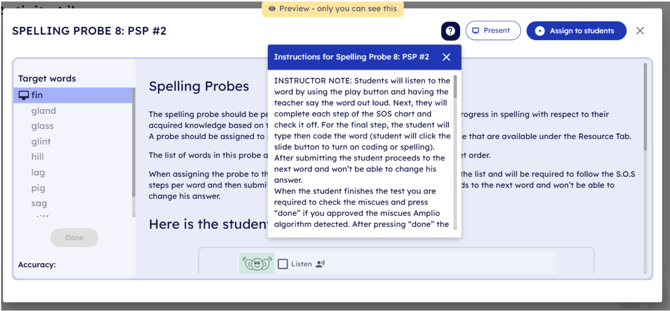
- Open Show Instructions to follow the provided script
- Introduce each word in the preset order
- Students follow the Save Our Spelling (SOS) steps to spell each word
- After submission, students cannot change their response
The platform automatically evaluates responses and documents miscues.
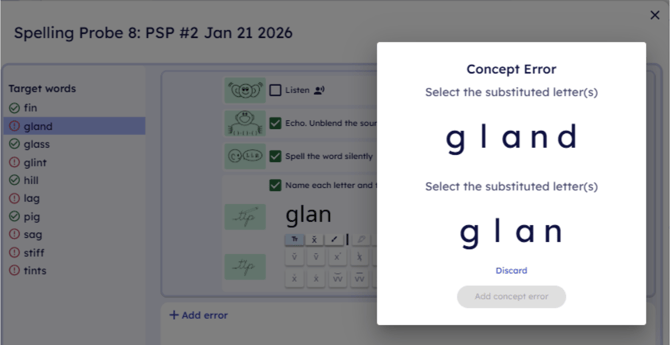
Understanding and Editing Errors
Amplio categorizes spelling errors into two levels:
- Level 1 (Error Type) – e.g., omitted letters, inserted letters, incorrect sequence
- Level 2 (Classification) – e.g., spelling formula, situational spelling, misspelled phoneme
After the probe:
- Review all automated error markings
- Edit or add errors as needed to ensure accuracy
- Select Done to complete the probe
A word may contain more than one error type.
Reviewing Spelling Probe Data
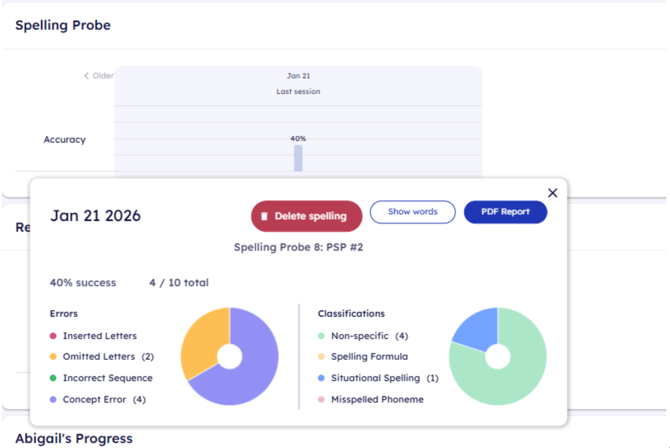
To review spelling probe results after a session:
- Go to Students & Groups
- Select the student’s name
- Open the student profile and scroll to Spelling
- Select a session bar to open the probe report
- Choose Show Words to review or finalize error data
All spelling probe data is stored in the student profile for ongoing progress monitoring and documentation.
Need More Help?
Visit the Help Center for more articles and videos covering MTA instruction, progress monitoring, and reporting tools.