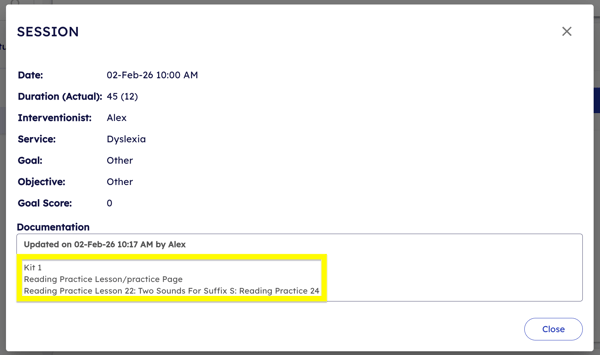
Sometimes you need to reference the last activities or lessons your student has completed. The student profile offers multiple areas to check!
Navigate to the student profile of the student you want to review. Your list of students is on the Students and Groups page.
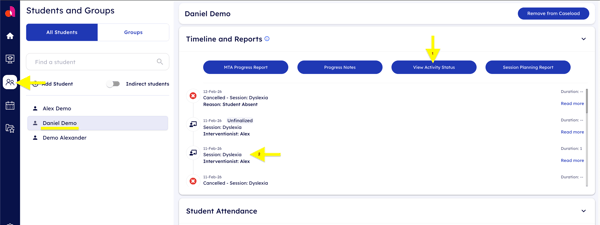
Once on the student's profile, there are two different areas we want to focus on:
- View Activity Status
- The student's Timeline
View Activity Status
Clicking the blue View Activity Status button will open the Activity Library, much like the one you see when scheduling and creating sessions.
You are able to filter through activities and lessons in the same way, using the filter drop downs to narrow down the results to find exactly what you are looking for.
The green user bubble icon indicates that the activity or lesson has been completed by the student!
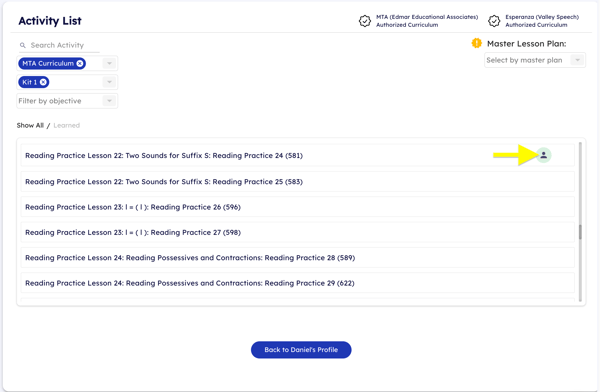
View Activity Status is a great way to confirm whether or not a student has completed a certain activity or lesson.
The student Timeline
The other way to check what a student has completed last, is by clicking on the last session they completed on their timeline.
Clicking on a session of the timeline will open up details of the session, including the Session Notes you entered. These can also contain the auto generated notes copied by the system which should list the exact activity/lesson.