
It is important to keep your internet browser up to date when using Amplio to ensure the smoothest experience.
Google Chrome is the recommended browser for Amplio.
How to update Google Chrome
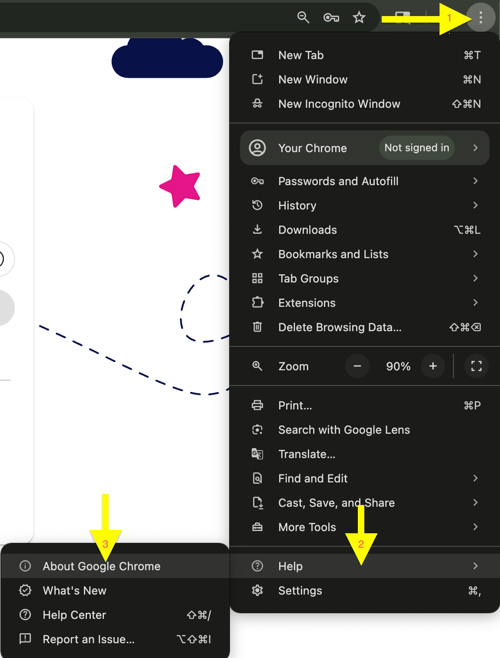
1. With your browser open, click on the stacked three dots icon in the top righthand corner of the window.
2. Hover your mouse over the Help option, which should slide open another tab.
3. Click on About Google Chrome in this new tab.
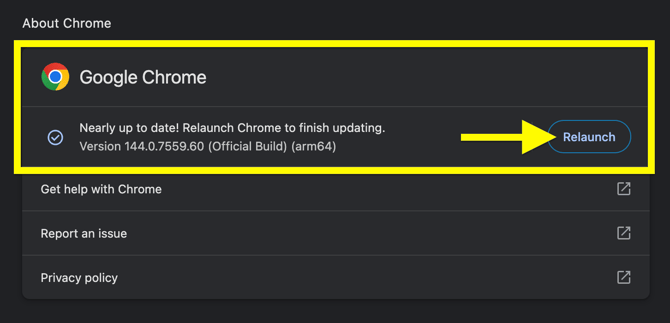
A new page should appear showing the current Google Chrome version and whether or it can be updated or not.
4. If there is an available update, click Update. The browser will update and then you should click the Relaunch button to restart Google Chrome with the latest update.
Note: It is important to relaunch the browser after updating.
How to update Microsoft Edge
1. With your browser open, click on the stacked three dots icon in the top righthand corner of the window.
2. Hover your mouse over the Help and feedback option, which should slide open another tab.
3. Click on About Microsoft Edge in this new tab.
The window should automatically update the browser if an update is available. One the browser has updated, be sure to relaunch it.