
Finalizing sessions is an important way of ensuring that data collected during the session is properly saved and logged to the student profiles of the session participants.
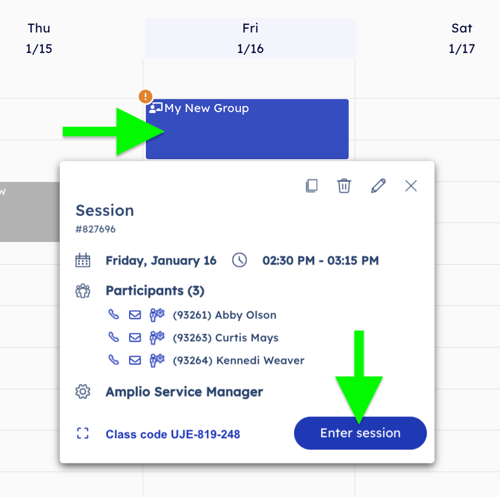
Sessions that are not finalized will show on your calendar with an orange exclamation point icon in the top left hand corner of the session block on the calendar.
Note: Sessions that are not finalized will also show as not finalized in your admin's overview of the district.
We recommend you finalize sessions as soon as you complete them!
To finalize a session on your calendar, visit the Calendar page and find a session block that has the orange exclamation point icon.
1. Click on the session block and then click the blue Enter Session button.
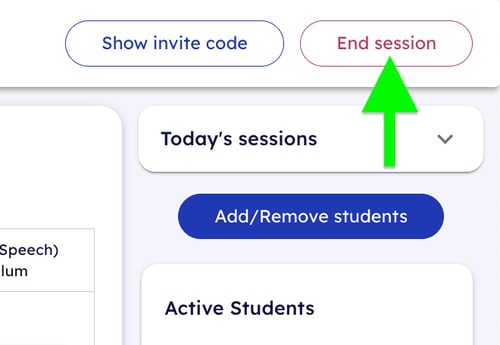
2. Once you have entered the session, click the End Session button in the top righthand corner of the session window.
3. The Session Summary window will popup. This window is where you will mark students present or not present depending on their attendance, as well as enter any applicable notes within the text fields for each individual student.
Note: If a student is marked as present, something must be entered into the notes field. If you choose to not copy the auto generated notes or do want to enter any notes, simply enter "N/A".
Once notes have been entered for each student that was present, the blue Finalize session button should be enabled. Click this button to finalize your session.
4. If you now navigate back to your calendar, you should see that that particular calendar block does not have the orange exclamation point icon anymore.
Congratulations! You finalized your session!