
Assigning activities is an integral part of sessions with your students.
To assign an activity, begin by exploring the Activity Library within the Classroom after you have entered a scheduled session.
Let's take a look at the Classroom and make note of important sections of the page.
-
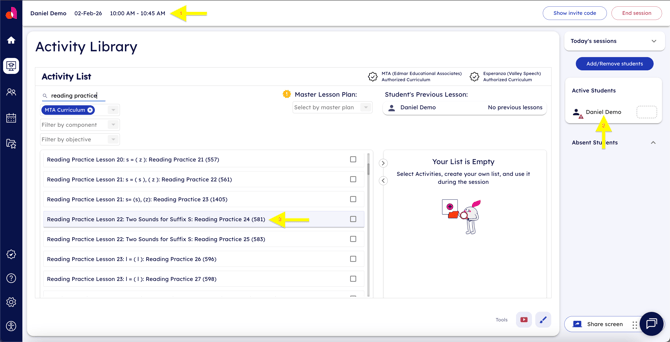
The header shows you the session you are currently in. It should highlight students, as well as the date and time for the session.
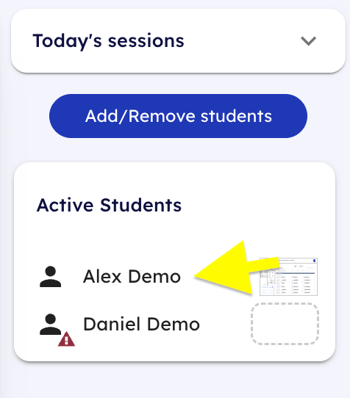
- The Active Students list shows you a list of students who are currently active within the session. If a student is not on this list, it means they still need to join the session. Note: Students who are not currently viewing Amplio in their browser will be shown with a red warning triangle icon as seen above. Prolonged inactiveness in the Amplio window will disconnect the student(s) all together, resulting in them being removed from the Active Students list.
- Activity titles can be clicked on within the Activity Library in order to open them and begin selecting what you would like to do: present them or assign them.
You can filter the Activity Library however you need using the controls on the table.
Once you have found an activity that you would like to assign, simply click on the activity title to bring up the activity in Preview Mode.
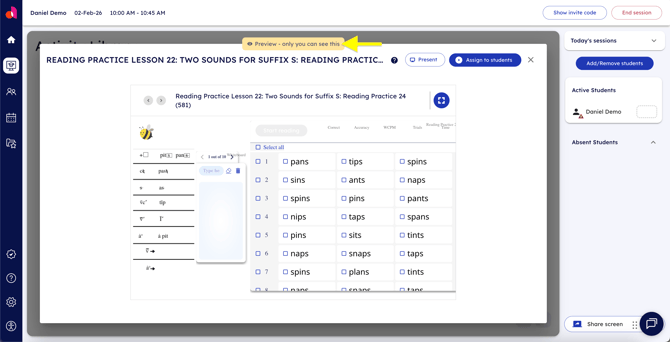
Preview Mode shows you the activity. Students do not see any activities in Preview Mode. You will need to either enter Present Mode or assign it to a student or students in order for them to see it.
Present Mode
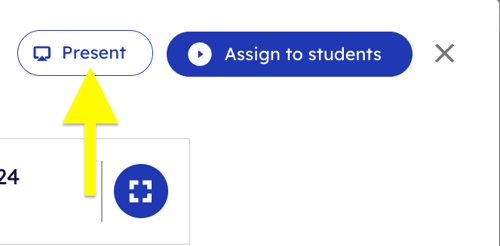
To enter Present Mode, click the white Present button.
Once you click the Present button, you will enter Present Mode, which is indicated by the green bar at the top of the classroom that reads Presenting to all students.
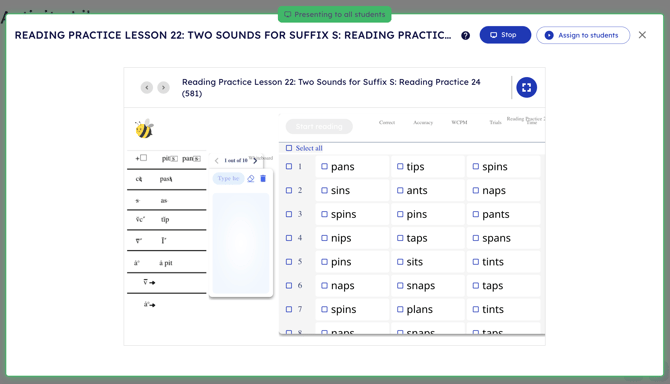
In Present Mode, the students see what is on your screen. If you interact with the activity, they will be able to see what you are interacting with on your screen/board.
Clicking the Stop button will exit out of Present Mode.
Assigning Activities to Students
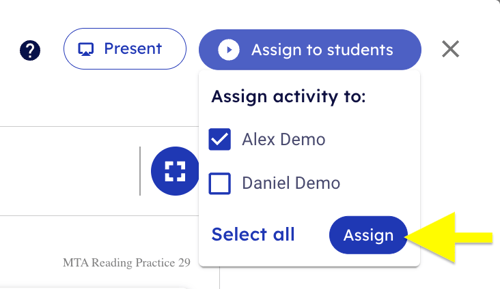
To assign an activity, click on the activity name in the Activity Library to open it in Preview Mode. From here, click the blue Assign to students button.
Note: If you only have a single student in the session, the activity will automatically be assigned. However, if you have multiple students, you will get a dropdown that allows you to select the student(s) you want to assign the activity to. Be sure to assign it to all of the necessary students you wish to complete the activity.
Once you have assigned the activity, you can verify it was successfully assigned by clicking on the student's name in the Active Students list.
Clicking on their name will open the student's screen/board for you to view. You can confirm you are looking at the student's screen by checking if their name is in the top lefthand corner of the window as seen below.
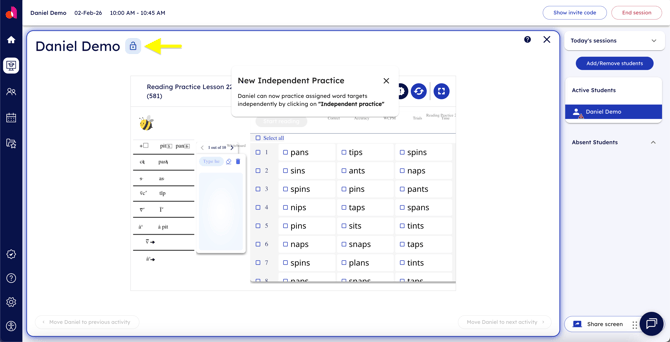
If you are not seeing the student's name in the top lefthand corner, then you are not viewing their screen and are either still in Preview Mode or some other view.
Note: This is especially important for activities such as Reading Practice activities wherethe selection of items to read must be done on the student's screen or else the Start Reading button will not enable!
Congratulations!
Nice work! You now know how to assign activities to your students. All activities are assigned the same way, so once you get the hang of it, it will become second nature.