The Students tab gives you a searchable list of all students in your district. From here you can view individual student profiles, download progress notes, and view plans of care.
Accessing the Students Tab
Select Students from the navigation tabs at the top of the Admin Center.
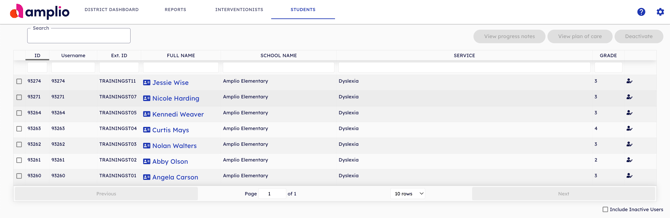
What You'll See
The table includes the following columns:
- ID — The student's system ID
- Username — The student's login username
- Ext. ID — The student's external ID (e.g. district student ID)
- Full Name — The student's name (select to open their profile)
- School Name — The school the student is enrolled in
- Service — The type of service the student receives (for Reading Intervention customers, this will show Dyslexia)
- Grade — The student's grade level
To include inactive students in the list, check the Include Inactive Users box in the bottom right corner.
Viewing a Student Profile
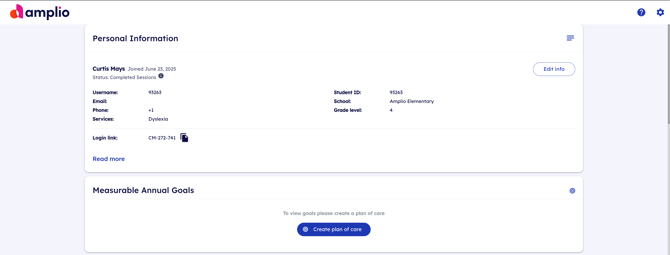
Select a student's Full Name to open their individual profile. The student profile view matches the profile that interventionists see, and includes:
- Personal information (name, username, school, grade, login link)
- Measurable Annual Goals
- Assigned Skills — Independent Practice Skills
- Assigned Skill Reports — Independent Practice Reports
- Timeline and Reports
For more detail on what is available in the student profile, refer to the educator article Reviewing the Student Profile.
Downloading Progress Notes
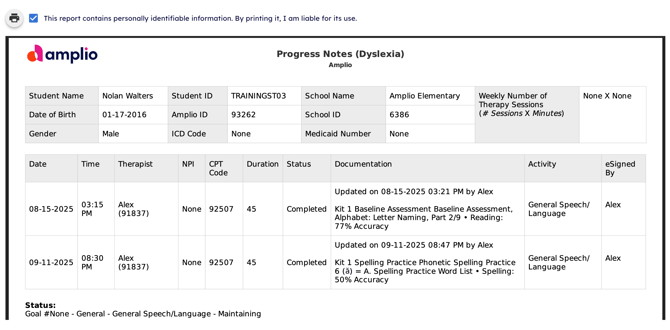
Progress Notes provide a session-by-session record for an individual student, including therapist, duration, CPT code, documentation, and activity details. This report is useful for IEP meetings, compliance documentation, and supervision reviews.
To download a Progress Notes report:
- Select the checkbox next to the student's name in the Students table
- Select View Progress Notes in the top right corner
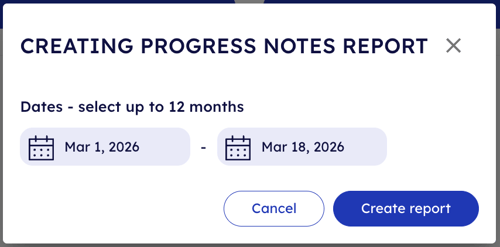
- In the dialog that appears, select your desired date range (up to 12 months)
- Select Create report
The report will open as a PDF and includes:
- Student name, date of birth, student ID, school, grade, gender, ICD code, and Medicaid number
- A session log with date, time, therapist, NPI, CPT code, duration, status, documentation, activity, and eSigned by
Before printing, you must acknowledge that the report contains personally identifiable information and that you are liable for its use.
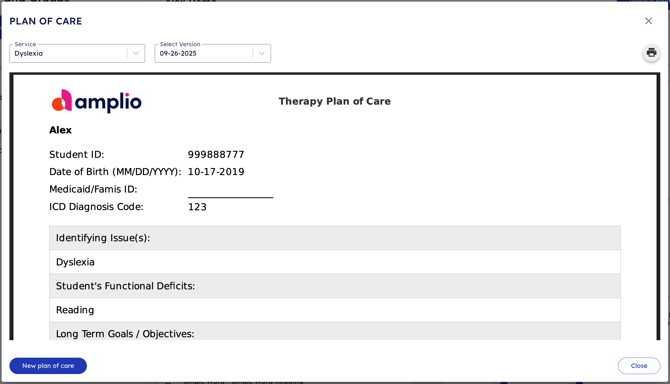
Viewing a Plan of Care
The Plan of Care report shows the student's documented care plan for a given service.
To view a Plan of Care:
- Select the checkbox next to the student's name in the Students table
- Select View Plan of Care in the top right corner
- In the dialog, select the Service and Version (Latest, or a previous version if available)
- Select Print to print or save the plan