
Amplio lets you add and remove students directly inside the platform, eliminating the need to upload rosters through Encyro.
These tools are built to be:
- Simple and secure
- Easy to track (you can always see a student’s status)
- Integrated into your everyday Amplio workflow
This article walks you through exactly what to expect, step by step. You may also click below for a self-guided demo (opens in a new window):
👉Click here for a step-by-step walk-through!
What You Can Do
With the new caseload tools, you can:
- Add one or more students to your caseload
- See when a student is pending approval
- Respond if more information is needed
- Know when a student has been approved
- Request removal of a student from your caseload
All without leaving Amplio.
Adding Students to Your Caseload
- Open Students and Groups from the Amplio sidebar.
- Stay on the All Students tab.
- Select Add Student.
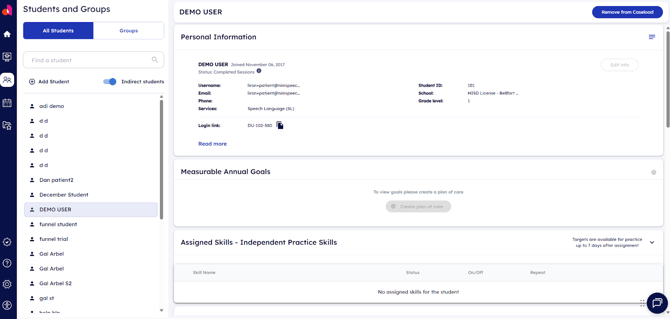
4. This opens the Add New Student(s) screen. Enter the student information, including:
- First and last name
- Date of birth
- School
- Student ID
Optional fields like grade or email will also appear.
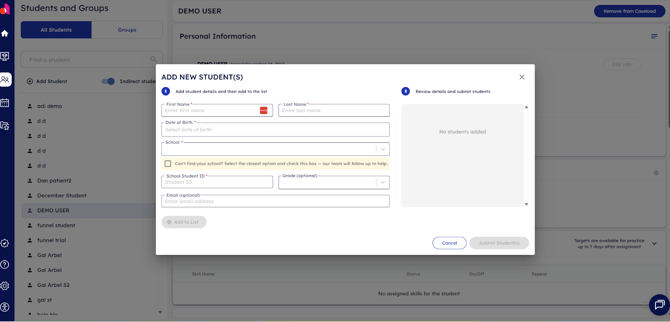
Can’t find your school?
Select the closest option and check the box that says your school isn’t listed. Your submission will still go through, and our Support Team will follow up if needed.
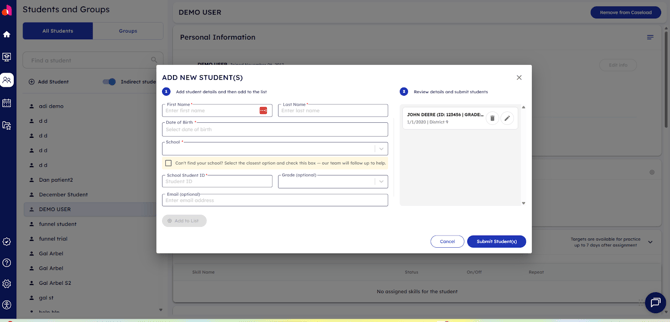
Adding multiple students?
- Select Add to List to queue a student
- Repeat to add up to five students at once
5. When you're ready, select Submit Student(s). You’ll see a confirmation message letting you know the request was received.
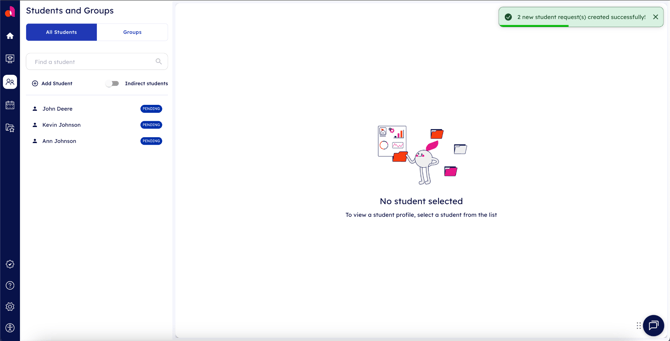
What happens next?
- Students appear in your list with a Pending label.
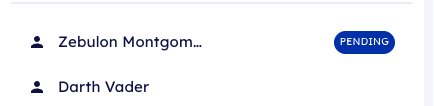
- No email is sent — status is always visible directly in Amplio
- Once approved, the student is automatically added to your caseload
If More Information Is Needed
Sometimes our Support Team may need clarification before approving a student.
How you’ll know
- The student will show a Needs Review badge
- Selecting the student opens a message explaining what’s needed

How to fix it
- Open the student record
- Select the Edit icon
- Update the requested information
- Add a short note explaining the change
- Select Update
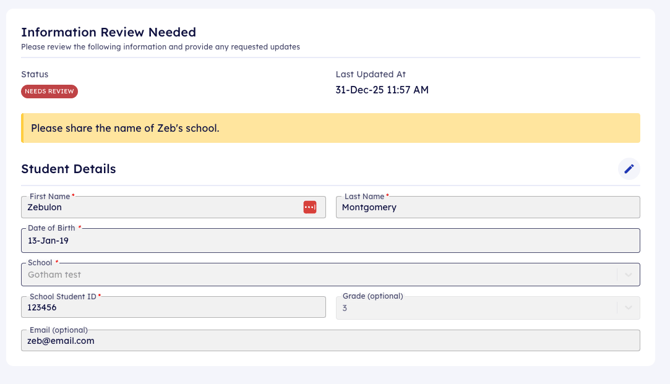
The student returns to Pending status while the admin reviews the update.
When a Student Is Approved
Once approved:
- The student appears in your caseload automatically
- A New badge is shown for a short time to help you spot the update
- No extra steps are required

If the student already existed in Amplio, any previous data will still be there — no duplicates, no re-entry required.
If a Student Is Declined
In rare cases, a student may be fully declined.
What you’ll see
- A Declined label in your student list
- A message directing you to contact support

Important notes:
- Declined students cannot be edited or resubmitted
- The student will disappear from your list after a short period
- You can contact Amplio Support if you have questions
Remove a Student From Your Caseload
- Open the student’s profile
- Select Remove from Caseload
- Confirm the request
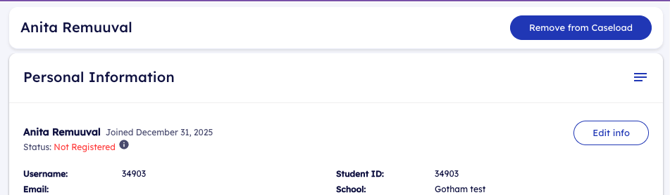
After you submit
- The student shows a Removal status while pending approval
- Once approved, the student disappears from your caseload
- If declined, the student remains active and unchanged
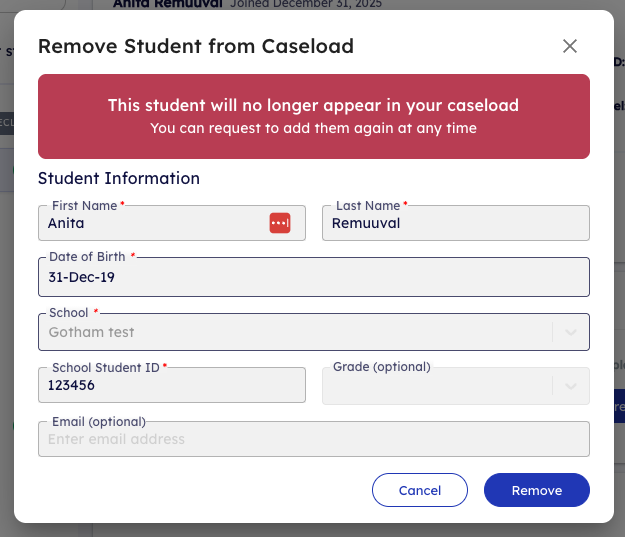
You can request removal again later if needed.
Need Help?
If something doesn’t look right or you have questions:
- Use the Help option inside Amplio
- Email support@ampliolearning.com
- Call (903) 961-1597
We’re here to help—and we’re glad to make caseload management simpler for you.