
Overview
When students log in to Amplio at home using the Log in with Google option, Google will show a list of accounts already saved on that device. If the student's school Google account isn't listed — or if a parent or sibling's personal account appears instead — you'll need to add the school account before continuing.
This article walks you through how to do that.
💡 Before you start, make sure you have the student's school Google account email address and password ready. If you're not sure what these are, check with your student's teacher or SLP.
When Do You Need This?
You'll need to add a Google account if:
- Your student has never logged in to Google on this device before
- Only a personal account (like a parent's Gmail) appears on the sign-in screen
- You see the message "Use another account" and need to sign in with a different email
Step-by-Step: Adding a Google Account
Step 1: Start the Google Sign-In Flow
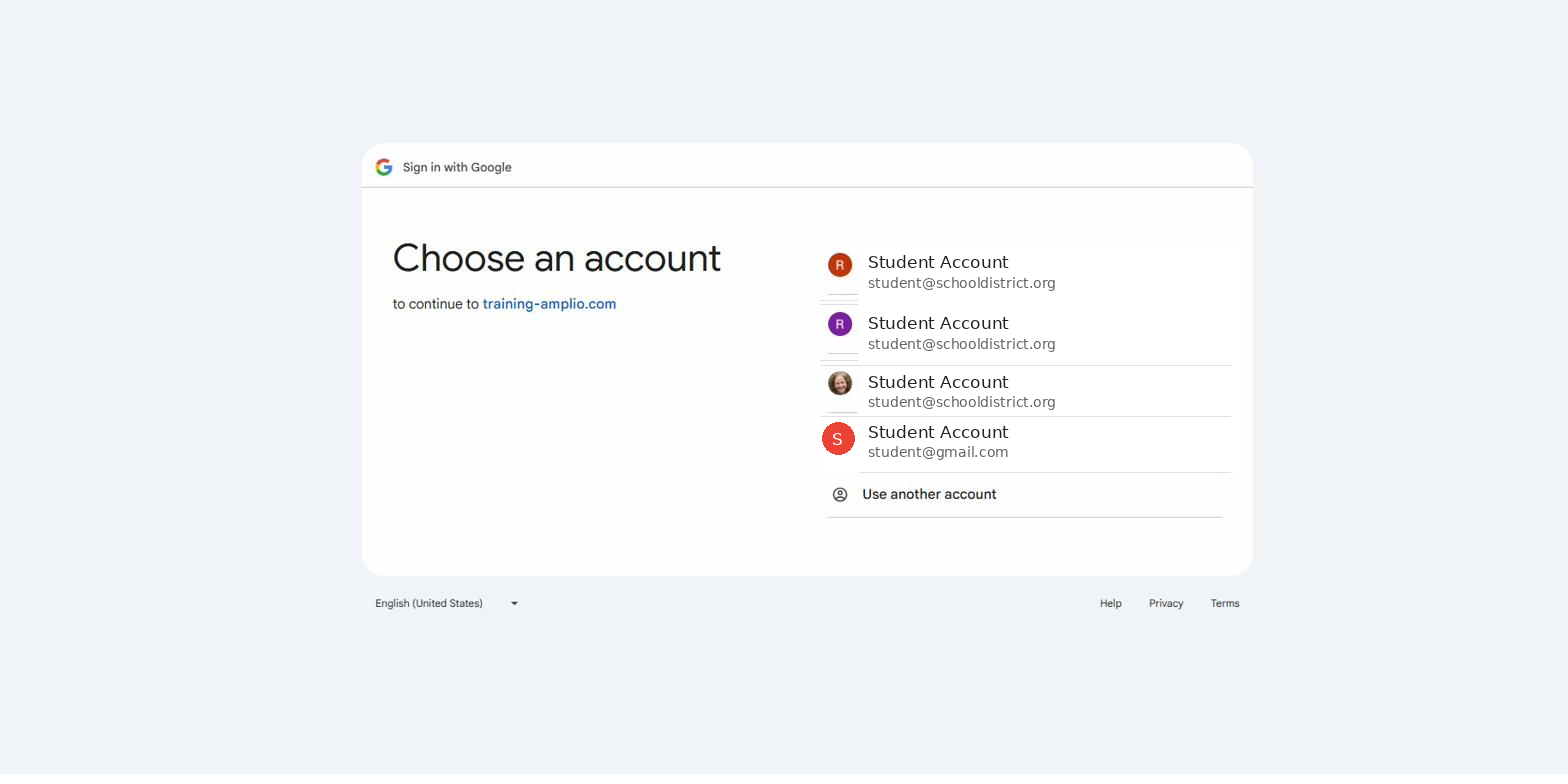
From the Amplio student login screen, click Log in with Google. A Google sign-in window will open.
If you see a list of accounts and the student's school account is not listed, click Use another account at the bottom of the list.
Step 2: Enter the Student's School Email
A sign-in screen will appear. In the Email or phone field, type the student's school Google email address (this is usually a school-issued address like studentname@schooldistrict.org).
Click Next.
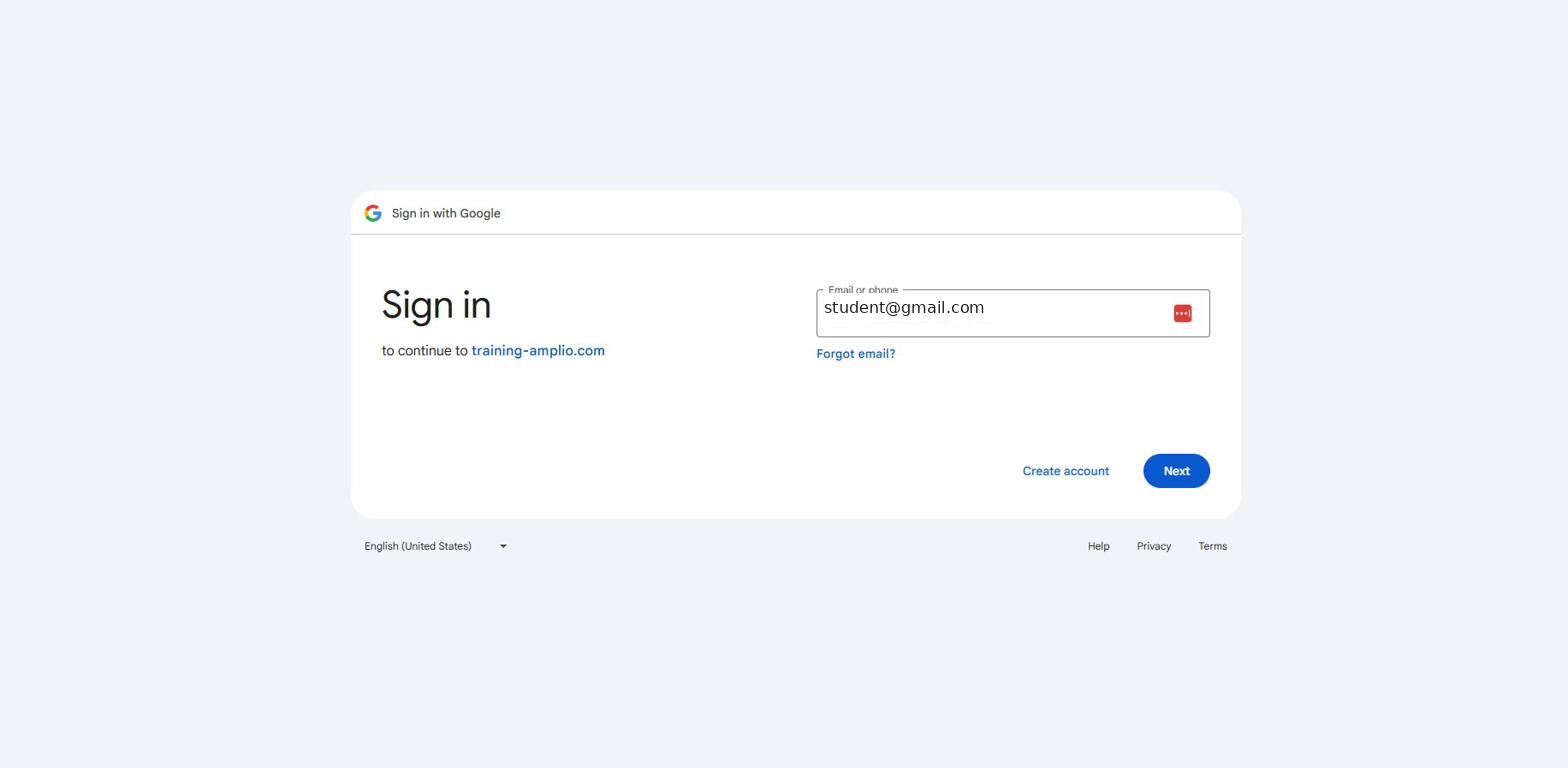
⚠️ Important: Make sure you enter the student's school email address here, not a personal Gmail account. Amplio is linked to your student's school account.
Step 3: Enter the Student's Password
On the next screen, enter the student's Google password and click Next.
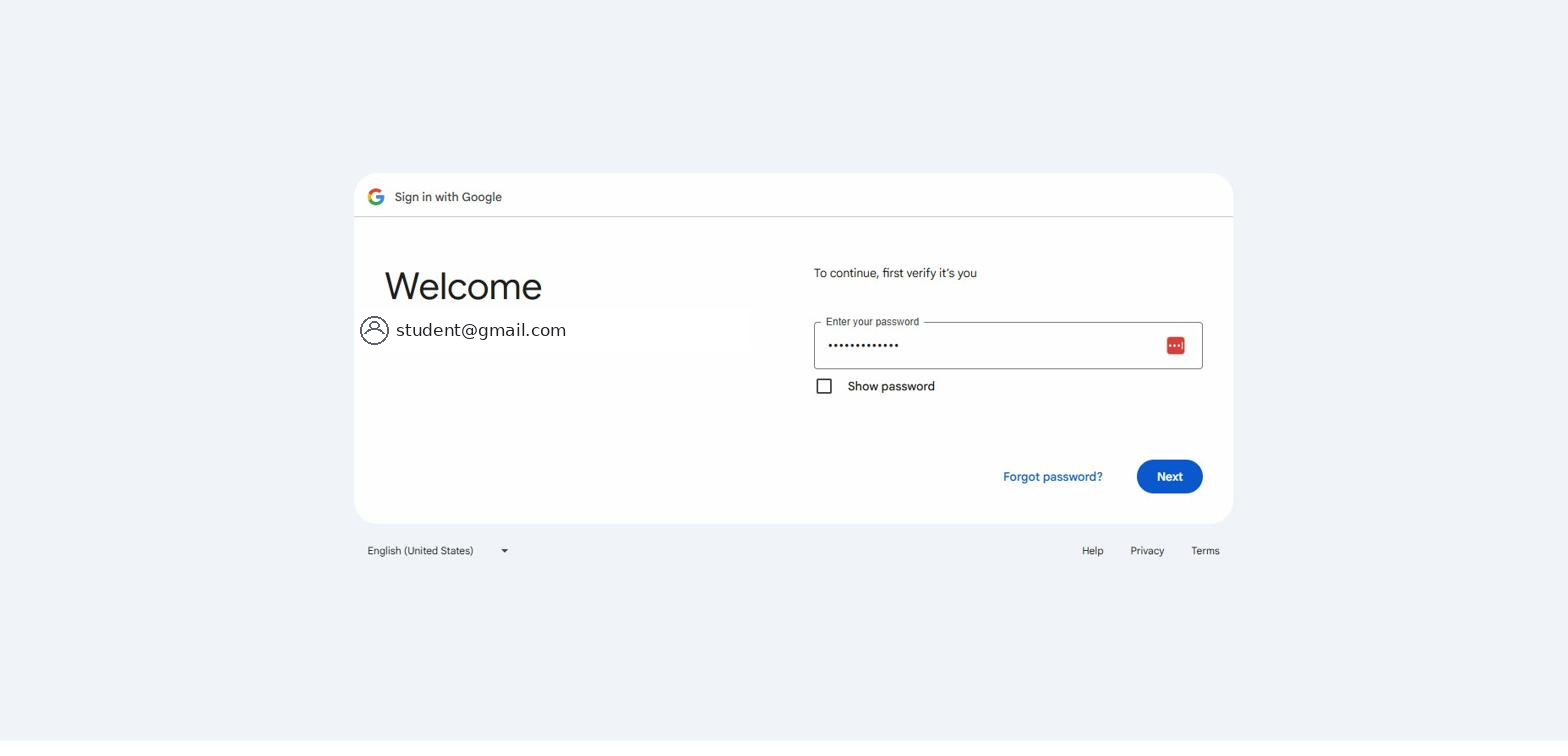
🔒 If you don't know the student's password, contact their teacher or school IT department. They can reset it if needed.
Step 4: Grant Access to Amplio
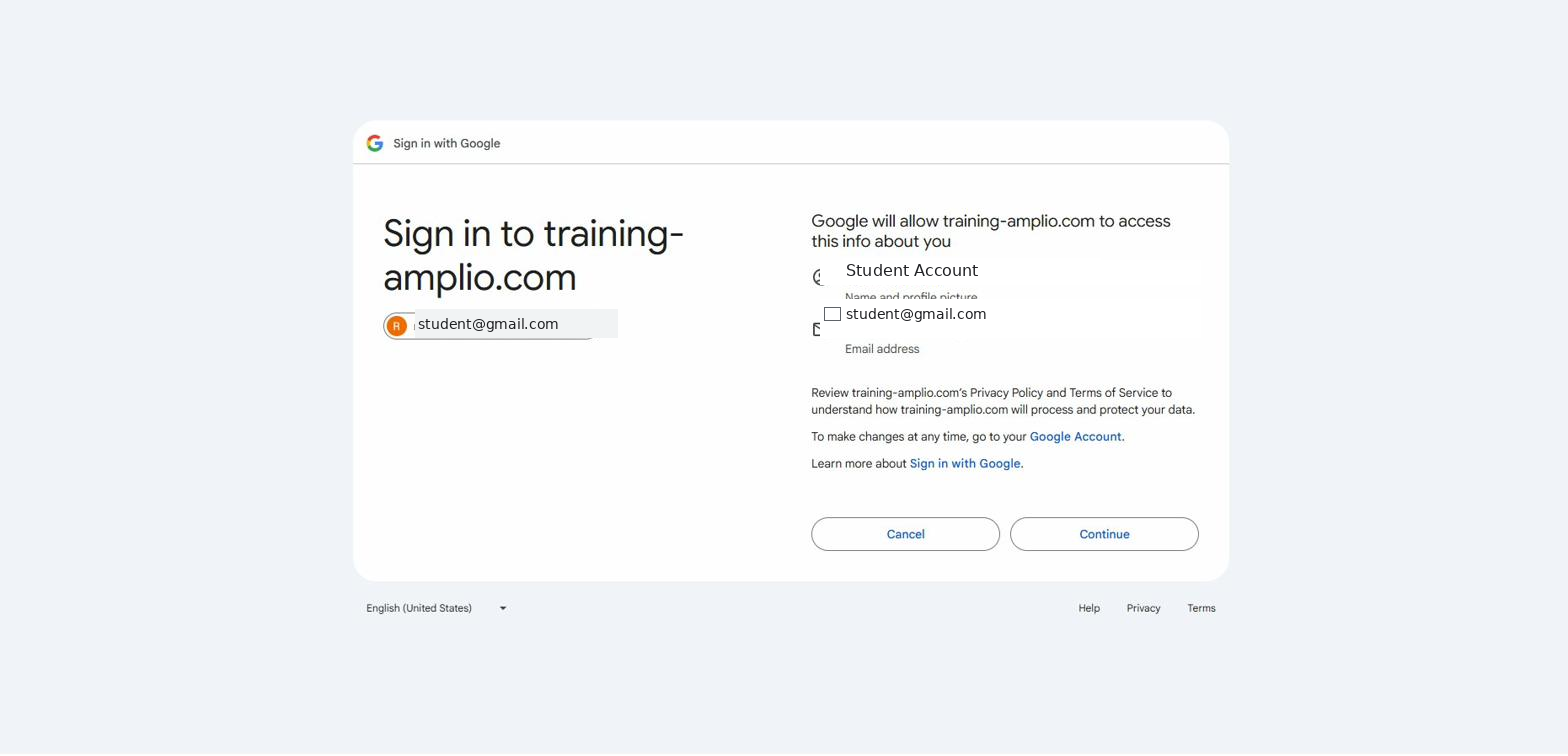
Google will ask for permission to share the student's basic info (name and email address) with Amplio. This is a one-time step.
Review the information shown, then click Continue.
Step 5: You're In!
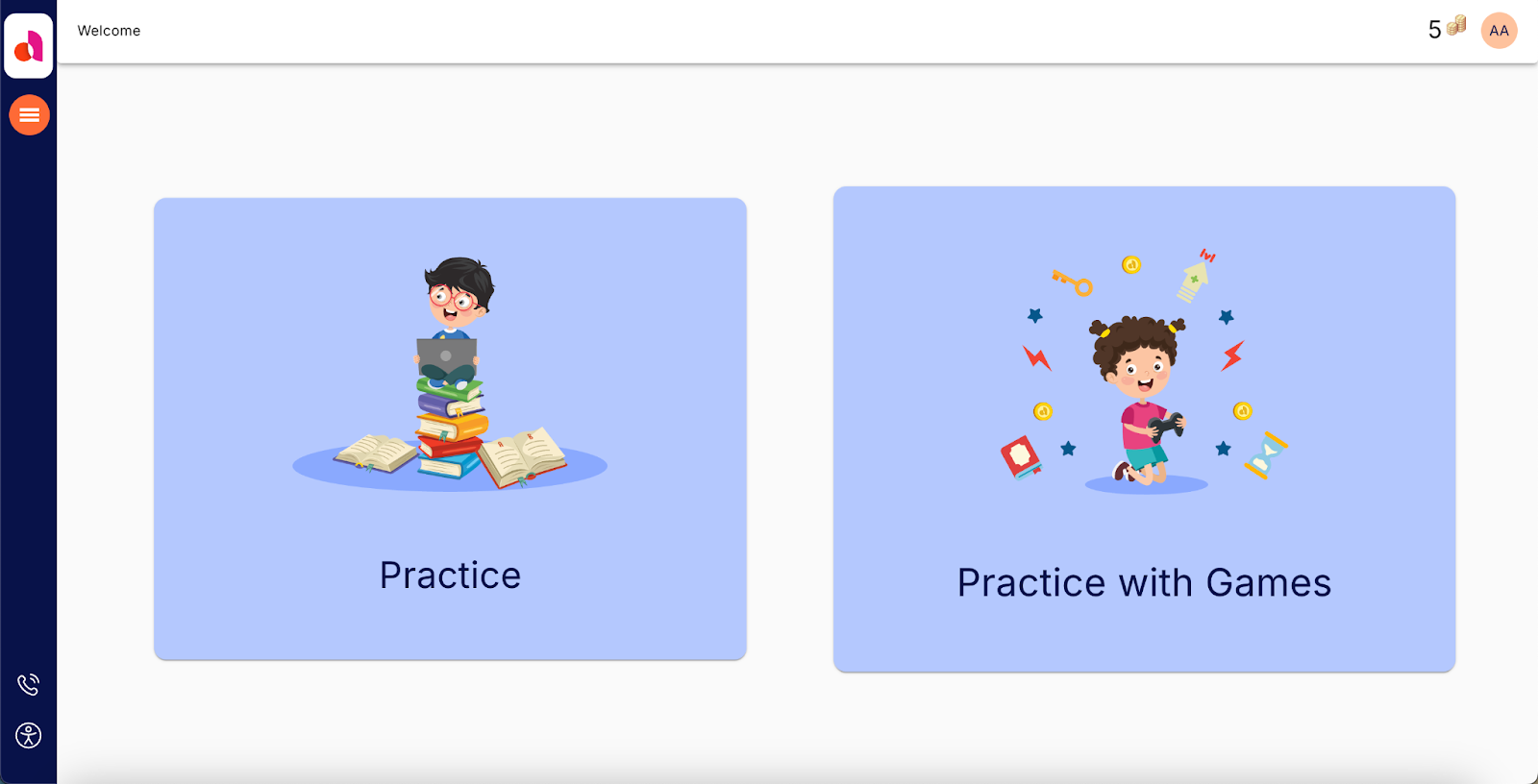
Amplio will launch and your student will land on their welcome screen where they can begin using Amplio.
Staying Signed In Next Time
Once you've added the account, it will be saved on this device. The next time your student logs in, their school Google account will appear in the list automatically — just click it to sign in without re-entering the password.
ℹ️ If your student uses a shared family device, you may want to sign out of Google after each session to prevent other family members from accidentally using the wrong account. You can sign out of Google at myaccount.google.com.
Still Having Trouble?
If you're still unable to add the account or log in after following these steps, please reach out to us at support@ampliolearning.com.